

What Cursor can do with your iPhone
Hand Cursor a phone and it can run your accounts, answer your customers, test your app and clear your errands, on one iPhone or five at once.
Run all your social accounts from one Mac
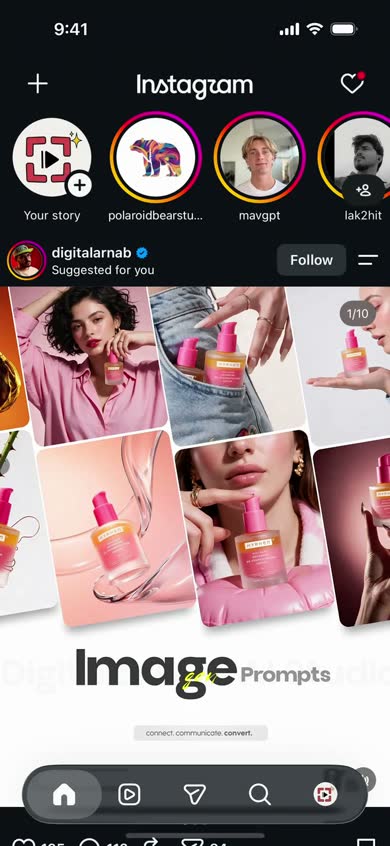
Connect up to five iPhones, each signed in to several Instagram and TikTok accounts, and Cursor can work 20–30 accounts for you: warming up new ones, engaging in their niche, finding creators and researching what’s working.
Try:
Across all five phones, warm up our 12 new TikTok accounts, each in its own niche, then tell me which ones already have the right For You page.
Find 15 clean-beauty creators under 100k followers who posted this week, and draft a collab DM to each from @glowlab.
Scroll 50 TikToks under #buildinpublic, pull the 5 hooks that keep going viral and turn them into launch video scripts for our app.
Show more prompts
See which hashtags our top 3 competitors used on their best Reels this month and build a hashtag set for each of our accounts.
From @runclubnyc, find 10 recent #marathontraining posts where a coach’s tip would help and leave one useful comment on each.


Reply to every comment, DM and customer
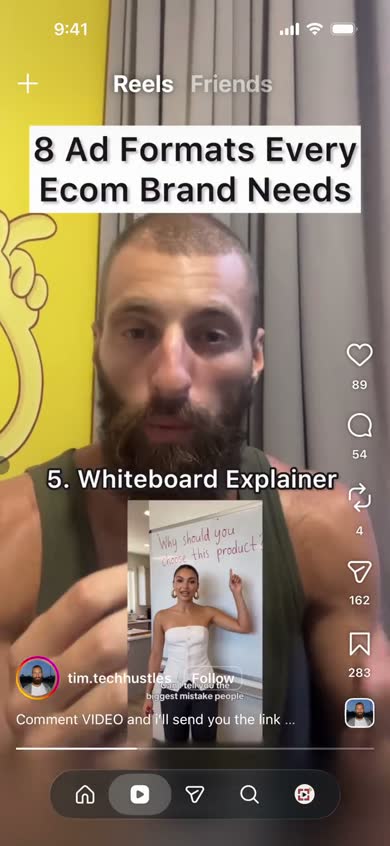
Cursor reads the comments and conversations across your accounts, works out what each person wants and answers them on WhatsApp, Instagram and TikTok.
Try:
Go through every brand account on these phones, answer the comments asking about price, sizing or shipping, and DM the product link to anyone who asked for it.
A customer sent a photo of a dress on WhatsApp. Find it in our catalog, reply with the price and sizes, and send the checkout link.
Find every customer who asked a question this week and never heard back (WhatsApp, Instagram DMs, TikTok comments) and reply to each one.
Show more prompts
Open App Store Connect, reply to every review from this week that reports a bug, then list those bugs here so we can fix them.
DM the TestFlight link to everyone who commented “beta” on our launch Reel, skipping anyone we’ve already invited.
More ideas: Cursor for Instagram accounts

Test your iOS app like your users will, before they find the bugs
Cursor uses your app on real iPhones the way people do (signed in, interrupted, impatient) and shows you what stands between a download and a paying user: confusing onboarding, broken edge cases, App Review red flags and screens an AI agent can’t use. Then it fixes the code and checks again.
Try:
Install our newest TestFlight build and go from first launch to the paywall as a new user. Count the taps and tell me where a real person would give up.
Install our top competitor from the App Store, go through its onboarding and paywall, and compare every step with ours.
Before I submit to App Review, check our app for account deletion, Restore Purchases on the paywall and a working privacy policy link.
Show more prompts
A 1-star review says the app freezes when uploading a photo. Reproduce it and screenshot what happens.
Play three users (a first-timer, someone who forgot their password and someone who says no to notifications) and report where each gets stuck.
Walk the new onboarding in our TestFlight build on my iPhone. If anything breaks, fix it in this repo, then check again once I’ve installed the new build.
Try to break checkout: go back mid-payment, switch apps, come back and retry. Screenshot whatever goes wrong.
Open our Expo dev build on my iPhone, sign up with a test account and screenshot every screen, then fix the layout bugs you find in the components.
More ideas: Test iOS apps on a real iPhone
Get one task done across several apps
Cursor moves between apps the way you do: it takes what it needs from one and finishes the job in another, from a single request.
Try:
Open my latest Hinge chat, work out what they’re into, find three date spots between us on Google Maps and suggest a time that’s free on my Calendar.
Grab the video and caption the client approved in our WhatsApp group and post it as an Instagram Reel.
Find the restaurant in my latest screenshot, check OpenTable for a table for 4 on Friday and send the booking to the group chat.
Show more prompts
Find my flight confirmation in Gmail, add the flight to my Calendar and text my mom the landing time.
Take the concert flyer from my screenshots, find two seats together on Ticketmaster and send the options to Sam.
Read the bug report Jordan sent on WhatsApp, reproduce it in our TestFlight build, fix it here and reply to Jordan with a screenshot of the working screen.





Order, shop and book in your apps
Cursor shops across the apps you’re already signed in to, comparing prices, using your saved addresses and past orders, and booking the best option.
Try:
Check Amazon, Walmart and Target for the 6 things on my shopping list, find the best price for each and add them to the cheapest cart.
Reorder my usual Chipotle bowl on DoorDash (or Uber Eats if it’s cheaper) and stop at checkout.
Rebuild last week’s Instacart order from Costco, swap anything that’s out of stock and schedule it for Saturday morning.
Show more prompts
Find a table for 2 at 7:30 on Friday on OpenTable or Resy and book the best-reviewed one.
Price an Uber and a Lyft from home to JFK for 6 am tomorrow and book the cheaper one.
Order dinner for the team on DoorDash: one pizza for every three people and something vegan for Priya, to the office by 7. Stop at checkout.



Organize and clean up your iPhone
Cursor can change the phone itself: your photos, Home Screen, Focus modes, notifications and settings.
Try:
Go through my photos, gather the screenshots, duplicates and blurry shots into a “Delete?” album and tell me how much space I’d free up.
Find every subscription in my App Store settings, flag the ones I haven’t opened this month and tell me what I’d save by cancelling.
Clean up my Home Screen: work apps on page one, games and social on the last page. Don’t delete anything.
Show more prompts
Set up my iPhone for a clean demo recording: Do Not Disturb on, our app on page one and every other notification off.
Turn off notifications for every app I haven’t opened in two weeks.
Nothing to install. Nothing to hand over.
No Xcode. No paid Apple Developer account. No jailbreak
Nothing goes on your iPhone. Zeptap works over a USB cable and Bluetooth.
Your passcode never leaves your Mac
It’s stored in your Mac’s Keychain, and Cursor never sees it.
Your screen never touches Zeptap’s servers
No Zeptap account, no relay: what’s on screen goes only to Cursor and the model provider it uses, under your own Cursor plan.
You stay in charge
Watch every tap from your Mac, stop any time, and have Cursor check with you before it sends, posts or buys.
 your Mac
 Cursor
Connect Cursor to your iPhone in minutes
Download Zeptap for your Mac (macOS 14 or later).
Plug in your iPhone and pair it over Bluetooth. Zeptap walks you through it.
Add Zeptap to Cursor. In Zeptap, open Settings › Connectors and click Add next to Cursor.
Add Zeptap to Cursor’s MCP settings
Zeptap runs on your Mac as a local MCP server that gives Cursor’s agent your iPhone. The Add button puts a zeptap server in ~/.cursor/mcp.json. If Zeptap doesn’t appear, reload the window or restart Cursor.
Prefer to edit Cursor’s MCP settings yourself? Add this to ~/.cursor/mcp.json:
{
  "mcpServers": {
    "zeptap": {
      "url": "http://127.0.0.1:47801/mcp"
    }
  }
}
Download for MacConnect via MCP →
First hour free. Prefer not to open Cursor? Zeptap’s built-in chat (⌘L) runs on your Claude or ChatGPT plan. Set it up in Settings › Agents.